
Organization settings
To access organization settings:
- Go to the Settings page. If you’re using a mobile device, you may need to access this page by first tapping (menu).
- Tap Organization.
The Edit Organization pane appears. See #organization-details.
Organization details
Section titled “Organization details”The Edit Organization pane allows you to configure organization details such as organization name, details, contact person, address, website, and email domain names.
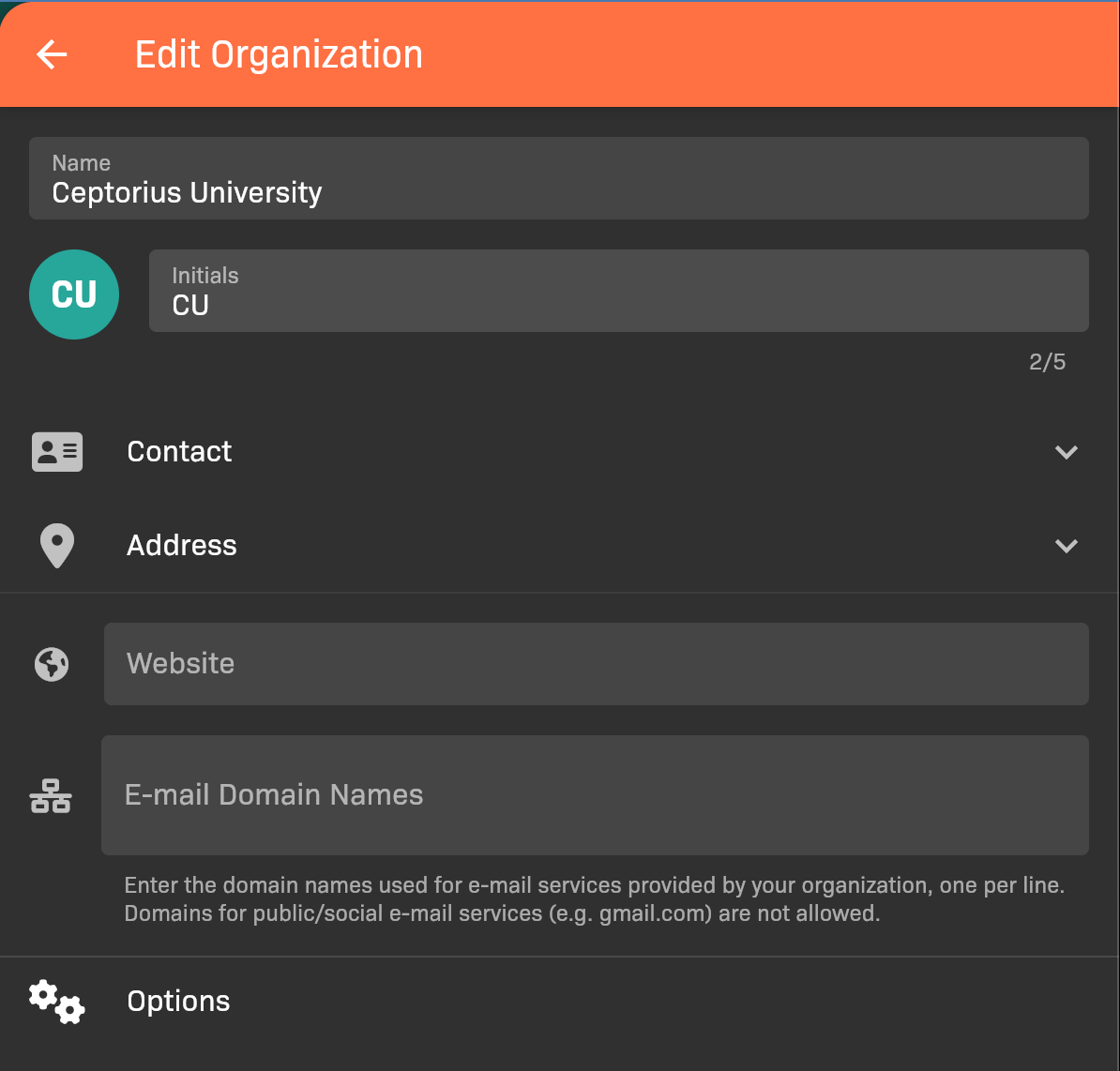
Edit Organization pane
Tap Options to modify organization options, which provide customizable policy settings. See #organization-options.
Organization options
Section titled “Organization options”The organization options provide customizable policy settings for app behavior, including general settings, evaluations, sim sessions, scheduling, reports, notifications, and labels.
To access organization settings:
- Go to the Settings page. If you’re using a mobile device, you may need to access this page by first tapping (menu).
- Tap Organization.
- Tap Options at the bottom of the screen.
General tab
Section titled “General tab”The General tab provides settings for new instructors, preceptor approval, and learning activity dashboard widgets for students.
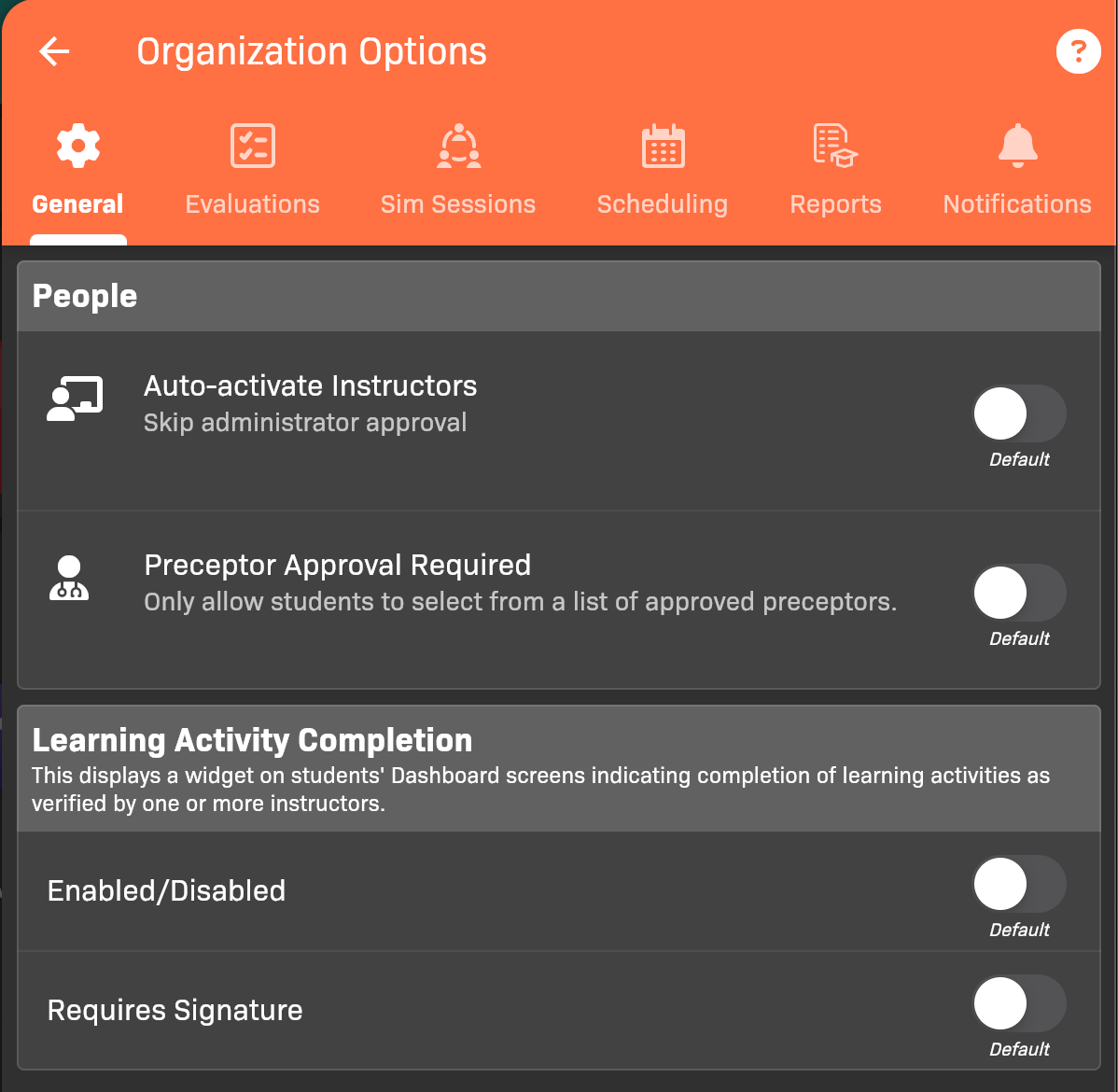
Organization Options - General tab
Evaluations tab
Section titled “Evaluations tab”The Evaluations tab provides settings that apply to all evaluation types, as well as customization options for each evaluation type.
Configure patient learning objectives
Section titled “Configure patient learning objectives”Under Patient Evals, use What counts as a successful patient encounter? to configure the learning objectives used by new cohorts.
- Rename, reorder, enable, or disable the built-in Assessment, Treatment, and Management objectives.
- Add custom objectives and choose their names, icons, and rating guides.
- Set the minimum score for each objective in the Simulation, Formative, Summative, and Capstone learning phases. N/A is the lowest available minimum.
- Choose which patient-care-report criteria appear under each objective. Interview and Skills remain in their required sections, and Narrative stays in its fixed location.
These settings are defaults for new cohorts. Creating a cohort takes a snapshot of the current objectives. Later changes to the organization defaults do not change cohorts that already exist.
Use a patient narrative template
Section titled “Use a patient narrative template”Under Evaluations → Patients → Narratives, turn on Use Narrative Template, then choose Edit to write the starting text. Formatting is supported. Use Save in the template editor to keep the changes; canceling leaves the previously saved template intact.
The option defaults off. Programs inherit the organization’s setting and template unless overridden. Turning the option off retains the saved template for later use. Enabling it with an empty template does not populate narratives.
The current template is copied into a blank patient narrative when someone opens that narrative editor, including for an existing evaluation. A narrative with text is never replaced. An unopened narrative remains blank; simply enabling a template does not satisfy its completion requirement. Once seeded, the narrative is saved through the normal editor flow, and later template changes do not rewrite it. Students and evaluators should replace prompts with the actual encounter details before submitting.
Sim Sessions tab
Section titled “Sim Sessions tab”The Sim Sessions tab allows you to enable or disable the Sim Sessions feature.
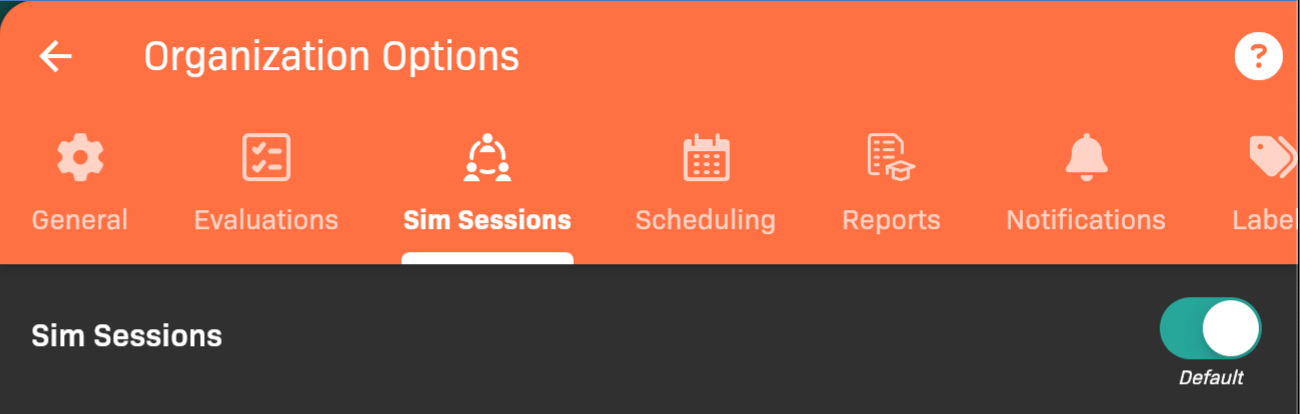
Organization Options - Sim Sessions tab
Scheduling tab
Section titled “Scheduling tab”The Scheduling tab allows you to enable or disable the Scheduling feature, and control approval preferences for Locations.
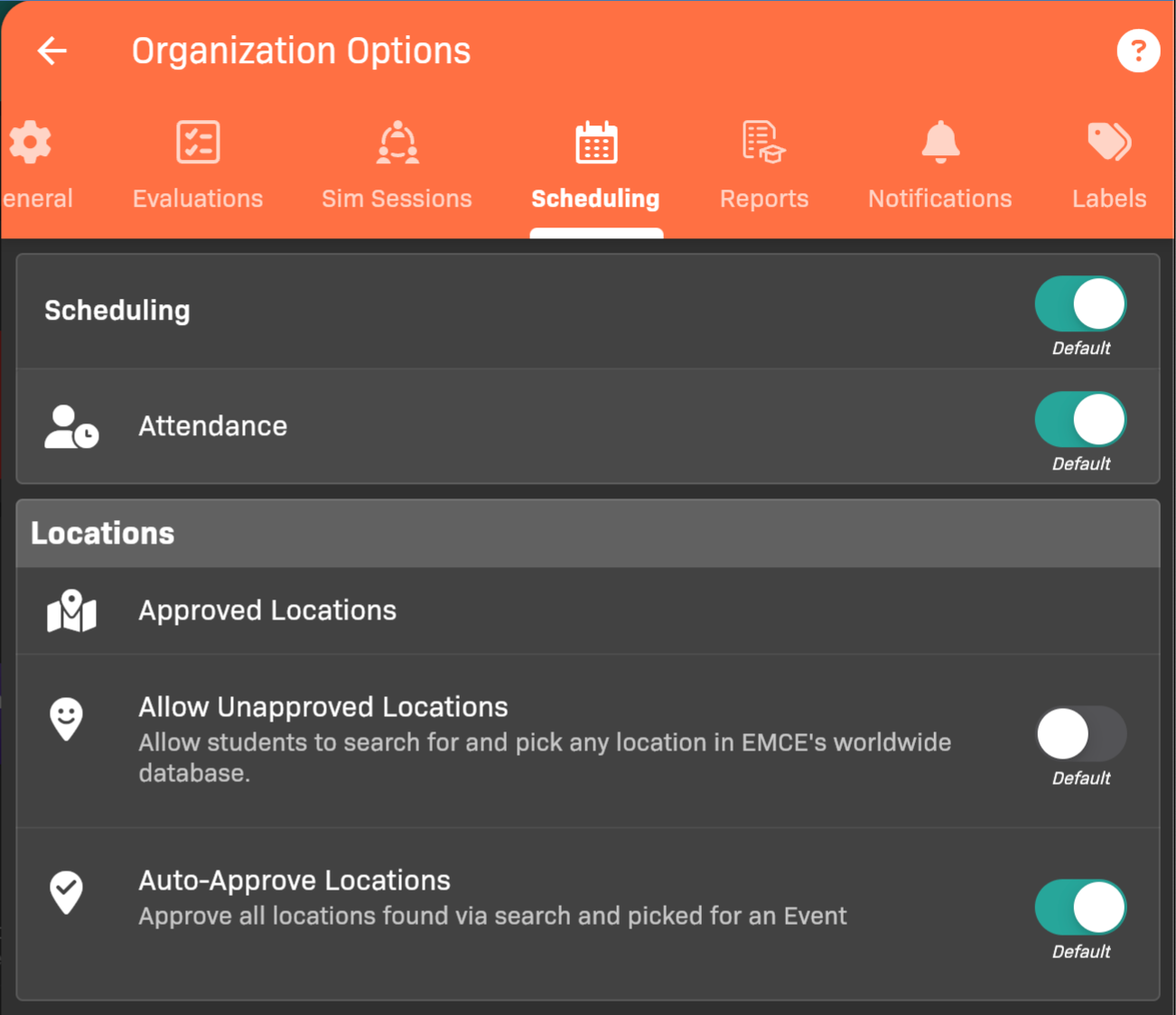
Organization Options - Scheduling tab
You can also enable Event Drop Requests for students if your organization uses Scheduling.
Attendance Rules controls clock-in availability, arrival/departure windows, location warnings, absence classification, and organization availability of faculty late clock-in alerts. See Configure attendance rules and late clock-in alerts. Each faculty member separately selects monitored cohorts and opts in through Notification Preferences.
Reports tab
Section titled “Reports tab”The Reports tab allows you to control report download settings.
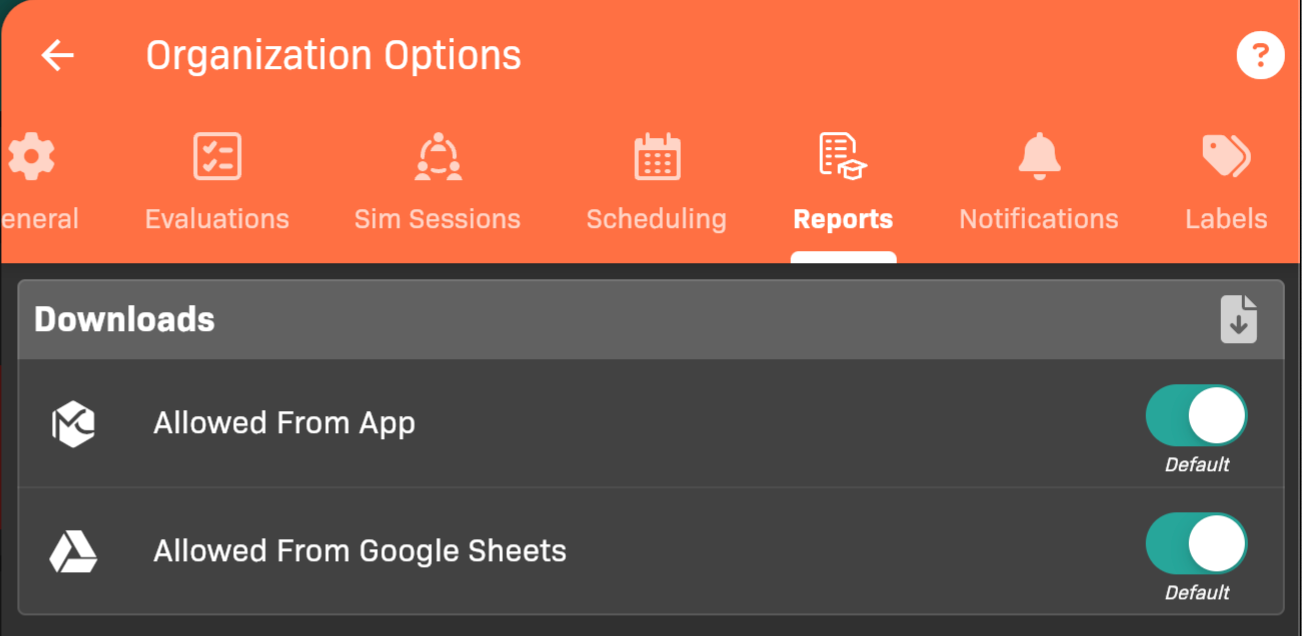
Organization Options - Reports tab
Notifications tab
Section titled “Notifications tab”The Notifications tab allows you to control notification settings for evaluations.
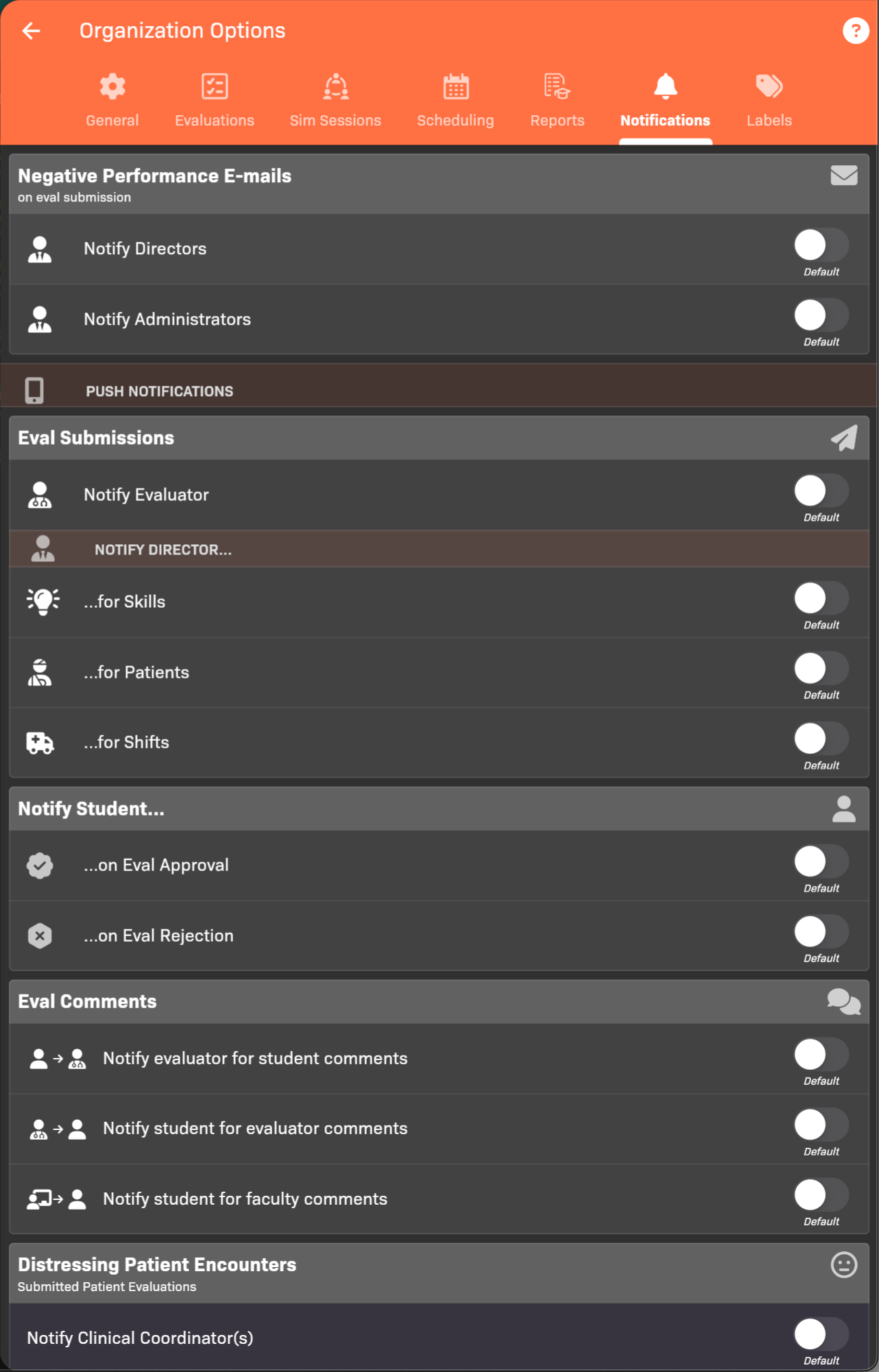
Organization Options - Reports tab
Learning Center tab
Section titled “Learning Center tab”The Learning Center tab controls AI tools such as PreceptoBot.
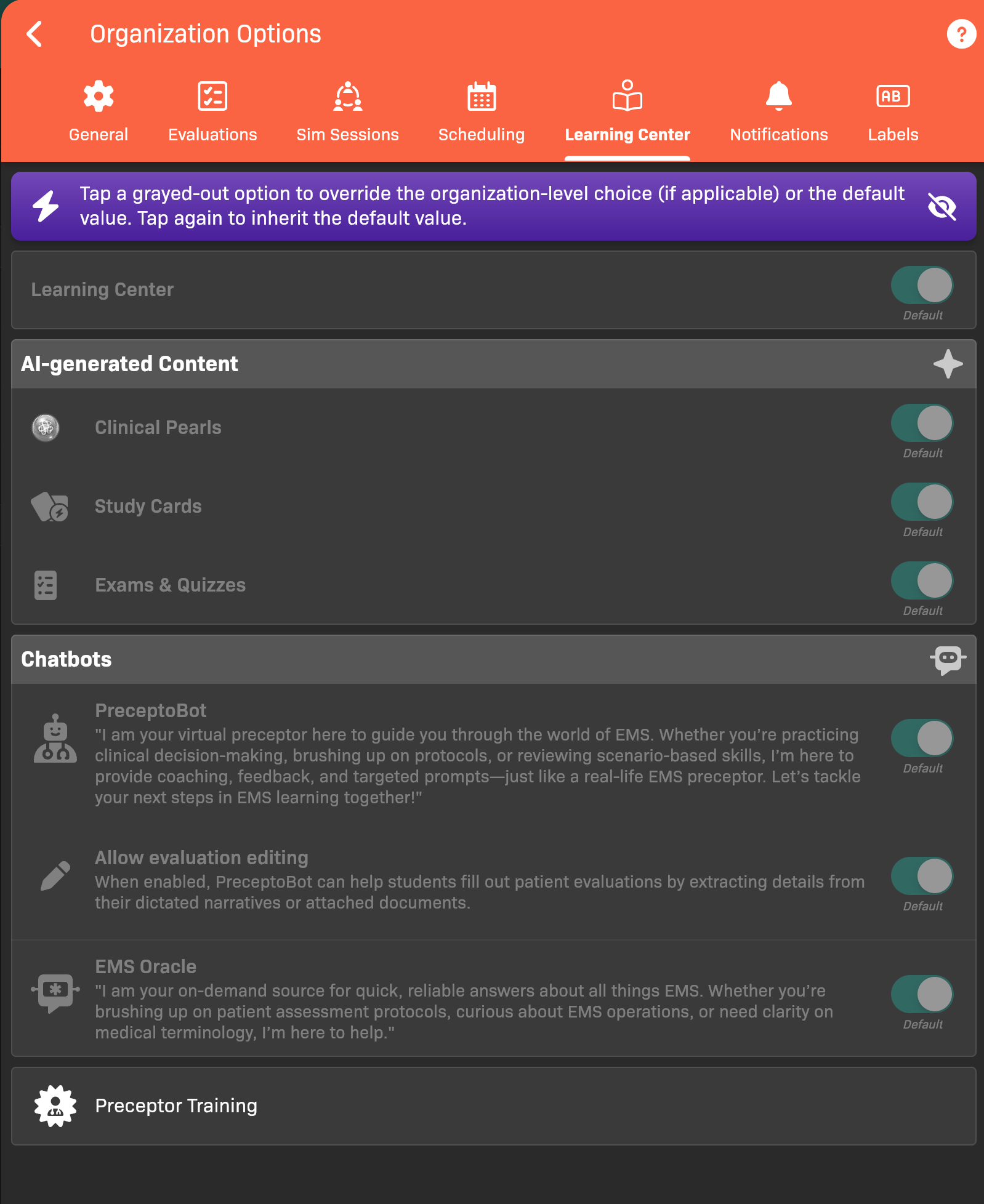
Organization Options - Learning Center tab
To enable PreceptoBot evaluation editing:
- Turn on PreceptoBot.
- Turn on Allow evaluation editing.
Labels tab
Section titled “Labels tab”The Labels tab allows you to rename Learning Activities, Pathologies, Learning Environments, and Skill Steps in the app to match the terminology your organization uses.
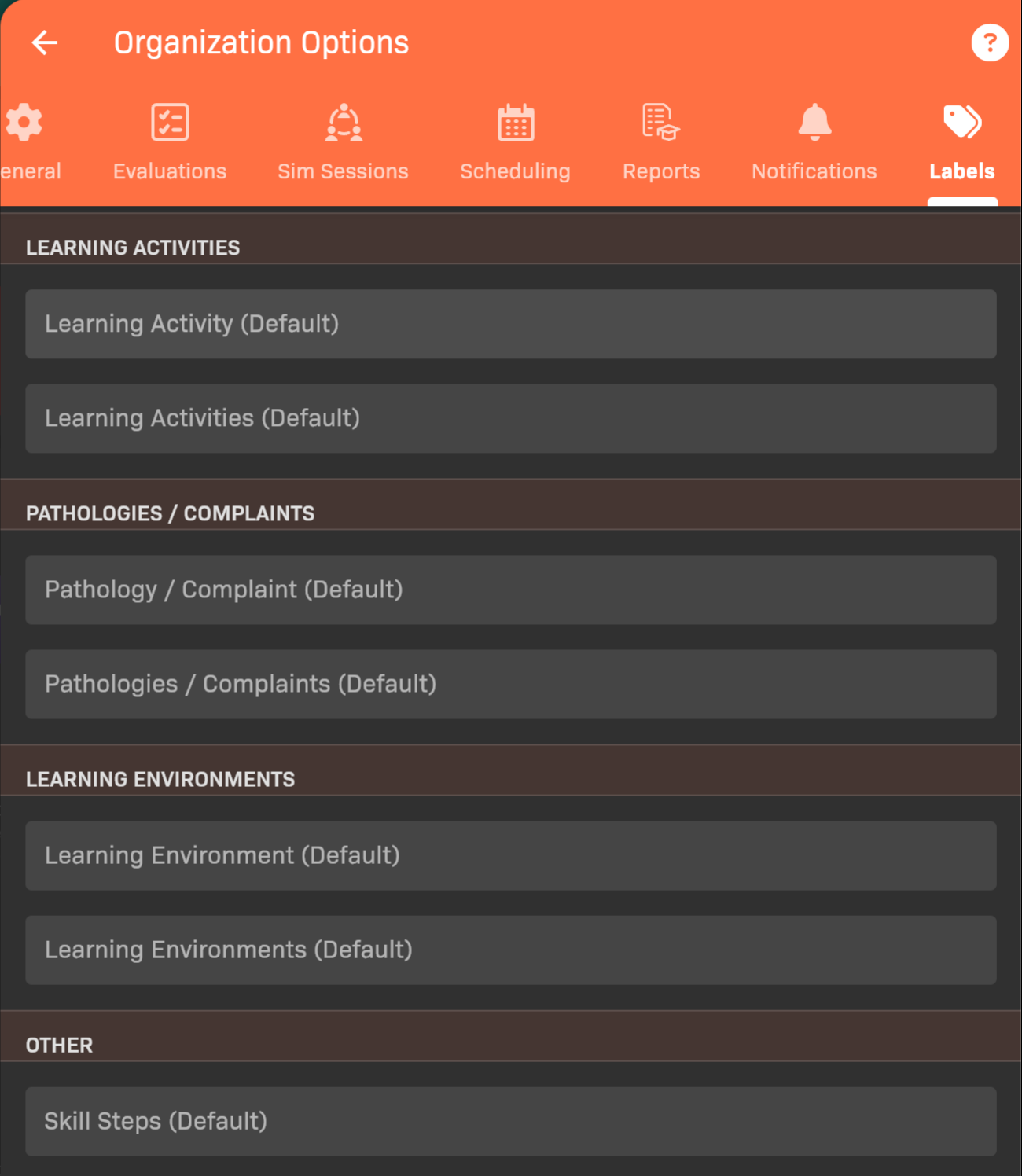
Organization Options - Labels tab