
Performing evaluator review for a shift evaluation
What is evaluator review?
Section titled “What is evaluator review?”When a student fills out an evaluation on their device, the evaluator needs to review that evaluation and approve or reject it. This ensures accountability and data integrity. For preceptors that have EMCE accounts, those reviews appear in their app. For preceptors that do not have EMCE accounts, the review must be performed on the student’s device.
The process starts when a student hands you their device.

Evaluator Review
-
Review this evaluation for accuracy and make changes as needed. See Filling Out a Shift Evaluation for details.
-
Complete the Student Affect Evaluation, if applicable.
-
Evaluate any unevaluated patient encounters:
- Tap on each patient individually to review details and score the student on their Assessment, Treatment, and Management of each patient encounter.
Icon Color Rating Gray Not applicable or attempted Red Did not perform successfully Yellow Performed successfully with some assistance Green Performed successfully independently or with little to no assistance - You may optionally add a comment in each section. By default, these comments are NOT visible to the student.
- To quickly edit the Scores, tap the icons for Assessment, Treatment, or Management.
.png)
Patient Scoring
- Tap Verify.
- If there are any patient evaluations that do not have Assessment, Treatment, and Management scores, or, if you have not completed a required Student Affect Eval, you will be prompted to complete them at this time.
Sign your name, then tap Save.

Signature verification
If the evaluator rejects instead of approves
Section titled “If the evaluator rejects instead of approves”If the evaluator taps Reject, they can enter a reason and optionally enable Evaluator Review Required.
- If Evaluator Review Required is selected, EMCE clears the current verification signature/photo. The student must complete evaluator review again and get a new signature/photo before resubmitting.
- If Evaluator Review Required is not selected, EMCE keeps the current verification signature/photo. When the student resubmits, the evaluation appears in faculty To Do lists for users with the Responds to Resubmitted and Automatically Submitted Evals responsibility.
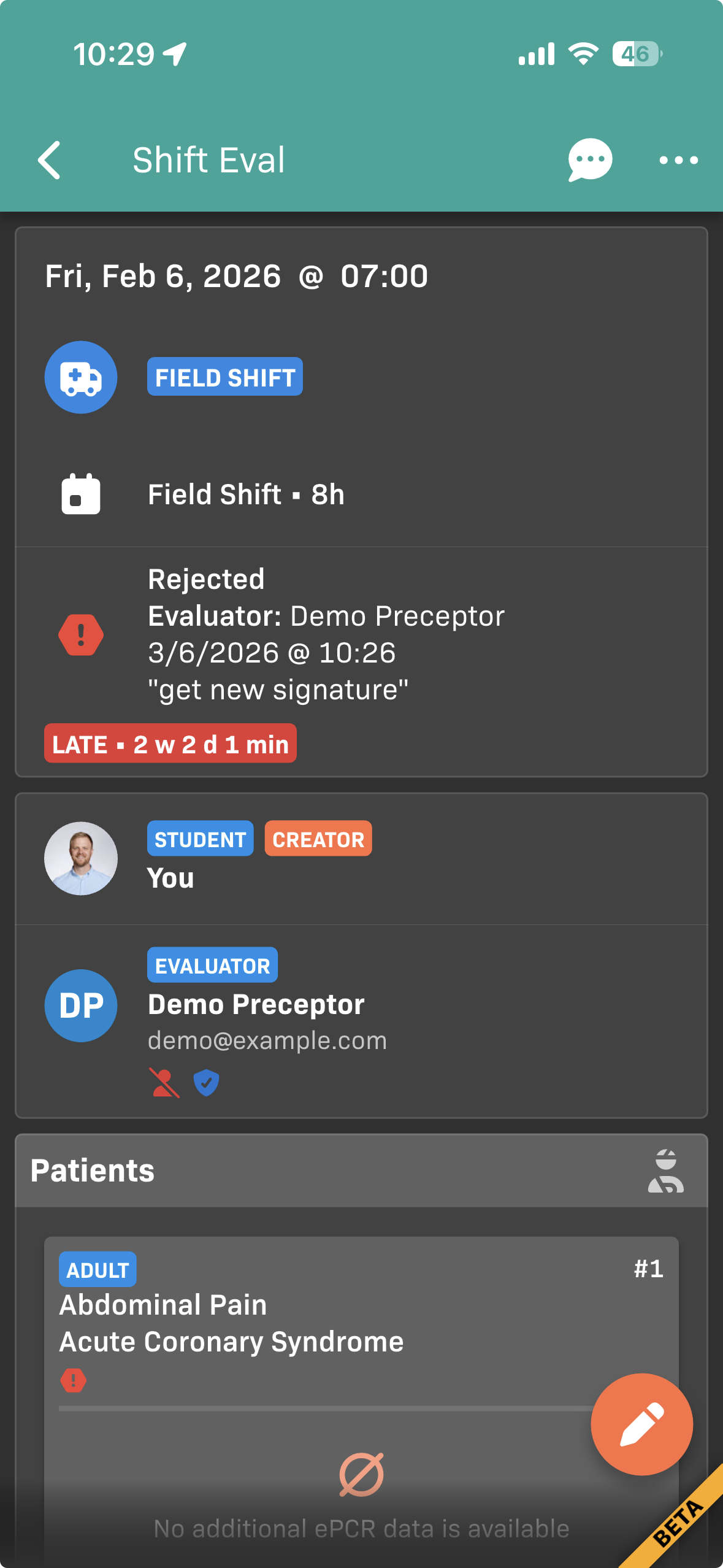
Rejected shift evaluation requiring a new signature