
Viewing your scheduled events
View the Schedule page
Section titled “View the Schedule page”- Go to the Schedule page. If you’re using a mobile device, you may need to access this page by first tapping (menu).
- Go to the My Events tab.

My Events tab
Viewing schedule on Apple Watch
Section titled “Viewing schedule on Apple Watch”If you use EMCE on Apple Watch, your upcoming events also appear in the watch Schedule view.
From the watch Schedule screen, you can open an event and clock in/out when available. For setup details, see Using EMCE on Apple Watch.
Filtering the schedule
Section titled “Filtering the schedule”Tap to view schedule filter options.

Schedule Filter options
Changing the schedule view
Section titled “Changing the schedule view”Tap to see the view options.

Schedule view options
Request to drop an event
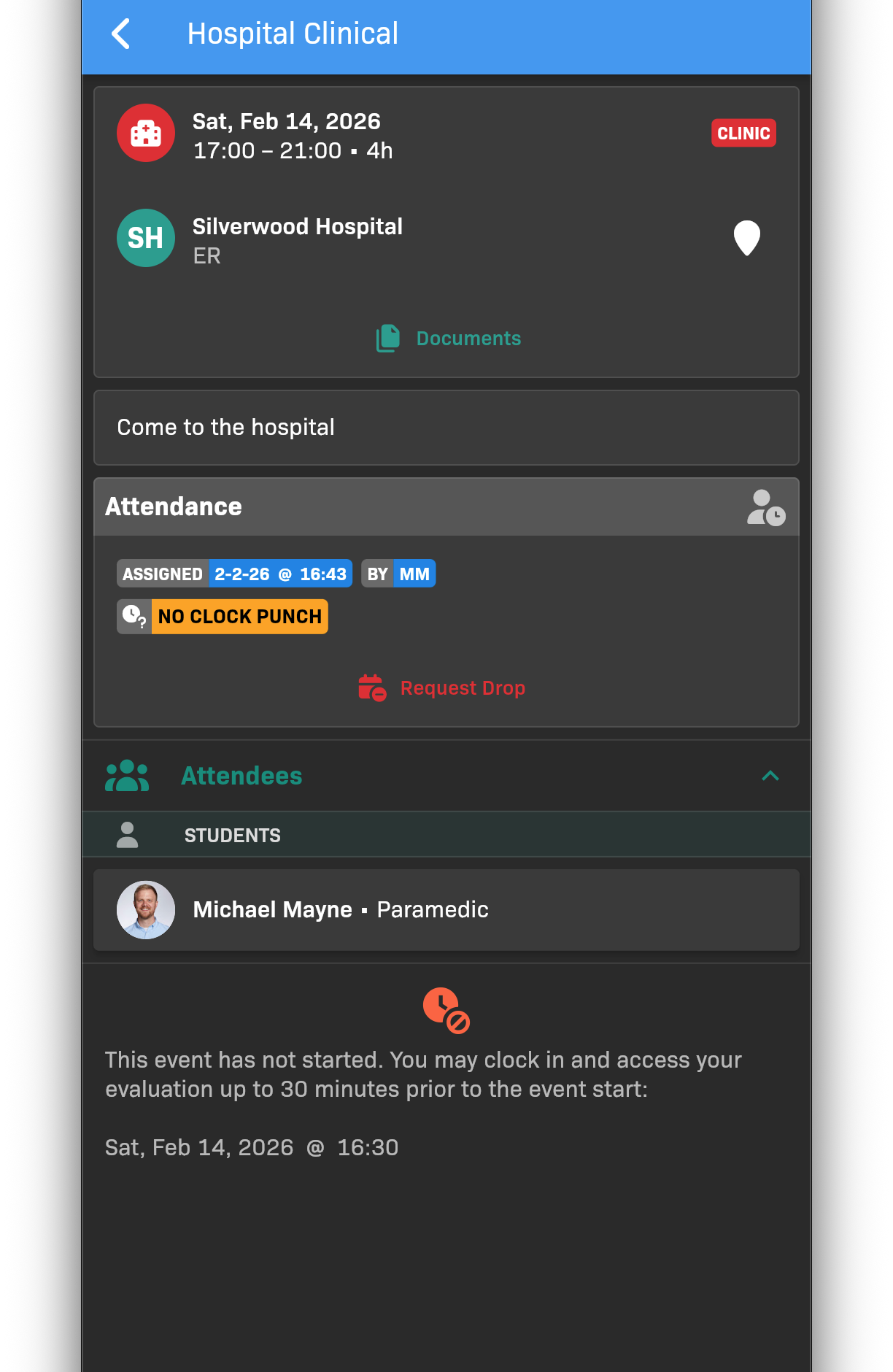
Section titled “Request to drop an event”If your organization allows drop requests, you can request removal from an upcoming event.
- On the My Events tab, tap the event you want to drop.
- Tap Request Drop.
- Enter a short reason, then tap Submit.
Request Drop dialog
For the full workflow, see Requesting to drop an event.