
Using EMCE on Apple Watch
The EMCE watchOS app is available for students using EMCE on iPhone.
Install EMCE on Apple Watch
Section titled “Install EMCE on Apple Watch”If your iPhone has Automatic App Install enabled, EMCE is installed on your Apple Watch automatically.
If it is not installed automatically, open the watchOS App Store on your watch and search for EMCE.
Sign in on Apple Watch
Section titled “Sign in on Apple Watch”You can sign in with:
- Your normal EMCE username and password
- A 6-digit sign in code from the EMCE app on iPhone: Profile > Edit
Use Schedule and attendance
Section titled “Use Schedule and attendance”After signing in, your upcoming events appear on the watch Schedule screen.
- You can clock in and out from your watch
- Clock in is available up to 30 minutes before the event start time
- Watch clock punches are marked in EMCE as watch-based attendance entries
- If EMCE has location permission, watch clock punches include location data
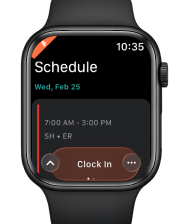
Apple Watch Schedule screen
Use Notes on Apple Watch
Section titled “Use Notes on Apple Watch”From the Schedule screen, swipe left to open Notes.
- Add notes by voice dictation or typing
- Notes sync to EMCE on web, macOS, iOS, and Android
- Notes entered offline sync when your device reconnects
- Saved notes can be used with PreceptoBot while documenting Shift or Patient evaluations
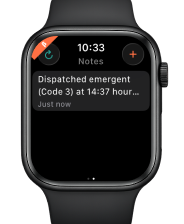
Apple Watch Notes screen